Office TV world clock
World Clock for Office TVs and Remote Teams
Turn any office TV into a world clock display: live clocks for multiple cities on one screen, each with its local time and whether your team there is working. Or embed it as a team time zone dashboard in Confluence, Notion, or your intranet.
Displays and embeds are read-only. Nobody can change your team from the TV or the wiki page.
Free, no sign-up. Add your cities and open it on any screen.
See every office's local time on one screen
Turn any office TV, meeting-room screen, or spare monitor into a live world clock for your distributed team. Add cities such as New York, London, Bengaluru, and Singapore to see their current local times, dates, and working-hour status side by side.
Is My Team Working shows which offices are inside their configured working hours, which start soon or have just finished for the day, and where working hours overlap. The display updates on its own, so it suits office walls, team rooms, reception areas, and remote-team dashboards.
Free to use. No sign-up required. Set up your cities, copy a view-only display link, and open it in a browser on your screen.
Nothing to click
A view-only link hides every button and menu, and the cursor disappears when it isn't moving.
Screen stays on
It asks the browser to keep the screen awake, so the display doesn't dim or sleep. Most Chrome, Edge, and Safari versions support it.
Always current
Clocks tick every second, and statuses change on their own as people start, finish, or hit a holiday.
Full screen in one go
Double-click anywhere to go full screen. Double-click again to leave.
Set up a TV display in a minute
- 1Add your cities. Open the Clocks tab, click + Add city for each office, and set its working hours, weekends, and holidays.
- 2Copy the TV link. Click Share at the top of the page, then Link next to Clocks. It copies a view-only link with nothing to click.
- 3Open it on the TV. Use the TV's browser, a streaming stick with a browser, a mini PC, or a laptop over HDMI. Double-click for full screen.
For the office, the lobby, and remote teams
A remote team time zone display answers one everyday question: who can I reach right now?
Office world clock screen
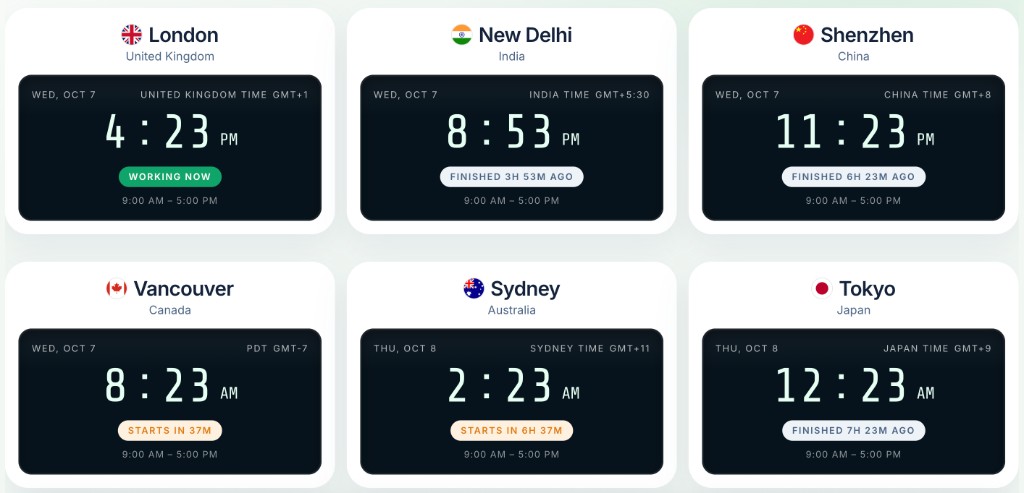
Multiple city clocks on one screen for the team area, the ops floor, or a meeting room: a global office clock display big enough to read from across the room.
Reception or lobby
An international office time display for visitors and staff: every office as a large clock or on a world map, with nothing to set or adjust.
Remote team availability
A working hours display for remote teams that shows team availability by time zone: who's working, who starts next, and who's on a holiday.
Need more than a glance? See who's working across time zones right now, find where global team working hours overlap with the time zone meeting planner, or read how to set fair working hours for a remote team. Every clock follows its city's daylight saving time changes on its own.
Embed it in your wiki or intranet
Copy the embed code from Share to add a team time zone dashboard to any page that accepts HTML: team working hours for Confluence, a remote team clock for your company wiki, or a working hours widget for your intranet. It updates live and can't be edited.
Engineering / Handbook
Team working hours
Check who's online before you message someone. These clocks update live and show when each office starts.
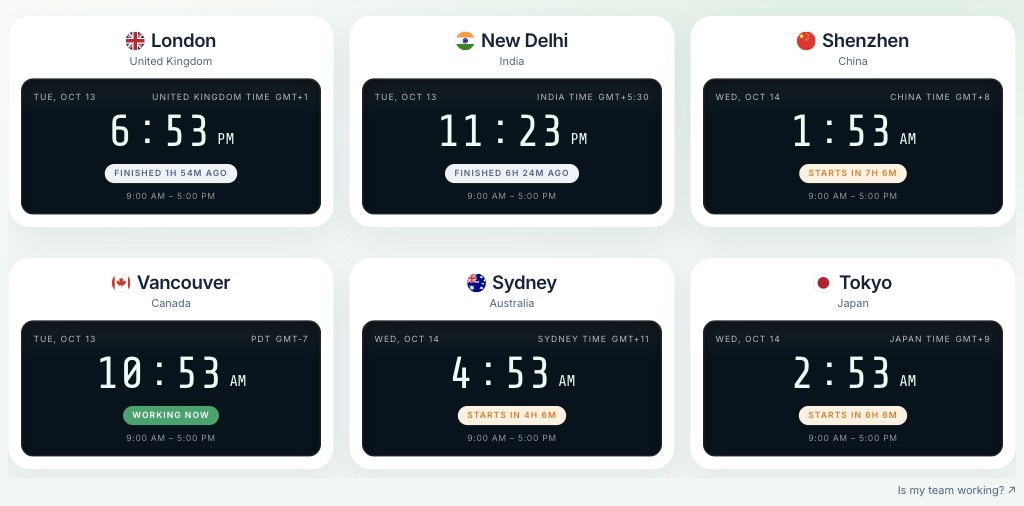
Team time zones by Is My Team Working?
The embed code
Share gives you this, with your team already in the link. Heights are set per view: 560px for Timeline, 480px for Clocks, and 520px for Map.
<iframe src="https://ismyteamworking.com/embed?team=…&view=clocks"
  title="Is my team working?" width="100%" height="480"
  style="border:0;border-radius:16px" loading="lazy"></iframe>
Where you can paste it
- Confluence - Paste the code into an HTML or iframe macro, if your admin has enabled one.
- Notion - Type /embed and paste the address from the code's src attribute.
- SharePoint - Add an Embed web part and paste the code.
- Google Sites - Insert → Embed → Embed code, then paste.
- WordPress - Add a Custom HTML block and paste the code.
- Your intranet or website - Any page that accepts HTML or iframes, so it also works as a world clock embed for a website.
Timeline, Clocks, or Map
Every TV link and embed shows one view. Pick the one that suits the space.
Timeline
Each city's working hours as bars across two days, with a live now line. Best for handoffs and spotting overlap.
Clocks
Large clocks with each city's status and hours. Easy to read from across the room, so it's the usual pick for a world clock for office displays.
Map
Every city on a world map with its local time and status. A good world clock for a reception or lobby screen.
Frequently asked questions
Quick answers to common questions. Can't find what you're looking for? Contact us anytime.
How can I display multiple time zones on an office TV?Add the cities you want to monitor, set their working hours, and copy the view-only Clocks link from Share. Open the link in a browser on your TV, streaming device, or connected computer, then double-click for full screen.
Can I show different country times on one screen?Yes. Add cities from different countries to display their local times, dates, and working-hour statuses together. The Map view puts the same cities on a world map.
Can I see whether my remote team is working right now?The display shows whether each city's configured working hours, weekends, and holidays make it a working time right now. It doesn't detect individual employees' online status.
Can I use this world clock without installing an app?Yes. Open the view-only link in a web browser. You can use the TV's own browser or connect a streaming device, mini PC, or laptop.
Can I display the team clock in our company wiki?Yes. Copy the embed code from Share and add it to Confluence, Notion, SharePoint, your intranet, or any page that allows embedded content.
Does the display update on its own?Yes. Clocks tick every second, statuses change as offices start and finish, and daylight saving changes are applied automatically. You never need to refresh it.
If I change my team, does the TV update?No. The team is stored inside the link itself, so the TV or wiki keeps showing the team as it was when you copied the link. After adding a city or a holiday, copy a new link and replace the old one.
Can people change the team from the TV or the wiki?No. View-only links and embeds have no buttons or forms, so the team can only be changed by whoever has the edit link.
Why does my TV screen still go to sleep?Some TV browsers don't let websites keep the screen awake. Turn off the TV's sleep or power-saving timer, or use a streaming stick or mini PC running Chrome or Edge.
Is it free?Yes, with no sign-up. See the privacy page for what the link contains and what we store.
Put a world clock on your office TV
Add your offices, copy a view-only link, and open it on any screen. Free, full-screen, no sign-up.